
New Workflow Engine
IdStory IDM version 15+ includes a proprietary workflow implementation for use in approval processes. The goal is to enable administrators to configure approval processes easily and flexibly, with full control over the sequence and conditions of approval steps. Auditability and robustness of the entire process are ensured.
On this page
- What are the main benefits of new workflows
- Differences between new and old workflows
- Admin documentation on how to configure the new workflow processes
- See transition to new workflows for detailed documentation on how to migrate to new workflows from the old system
Main user benefits
- Configurable approval workflows for all entities in IdM (see below for a list of already implemented; the list can be extended through development)
- Centralized approval management in one place within IdM
- Easy access to historical approval tasks
- Bulk approval or rejection capabilities
- Notes available at each step to ensure full audit transparency
- Summary notifications for new tasks and reminders for current ones instead of dozens of individual emails
- User-friendly filtering and organization of tasks awaiting my approval or tasks I am waiting for others to approve
- Gradual transition from legacy approval processes
- Clear and centralized configuration of approvals for easy administration
- Built-in safeguard to prevent unintended “self-approval” even in case of misconfiguration of approvers
- Role requests are submitted in the background - the submit does not wait until the approval of a large request (thousands of roles) is started
- A role request is executed only after the approval processes of all its roles are finished, and the approval of a request which got stuck (e.g. after a restart of the server) is resumed by a scheduled task
Differences between the old and new workflow engine
| Old workflow engine | New workflow engine |
| Based on the external Activiti library. | Developed in-house as part of the product. |
| Covers most of BPMN. | Includes only a limited set of BPMN features. |
| Approval workflows are stored in XML. | Approval workflows are stored in the database. |
| Approval workflows must be created outside IdM using an external tool (without any user-friendly interface). | Approval workflows are created using an editor directly within IdM. |
| Primarily intended for role request approvals; setting up approvals for other types of events is difficult and requires extensive custom development. | In principle, allows for the approval of any event on an eventable entity; adding support for new approval events is significantly easier. |
| Configuration is complex, using configuration items that do not clearly indicate which approval process is used and when. | Approval configuration is centralized via the Approval Process entity, which specifies "this event is approved by this workflow (on this condition)". |
| Allows roles within a single request to be grouped into one approval task. | Each role in a single request has its own workflow, and therefore its own approval tasks. |
| Approval tasks must be approved one by one. | Allows for bulk approval. |
| If the requester is an approver in the first round of approval, the request is automatically approved by them; in subsequent rounds, the request must be approved manually again. | Automatic approval works regardless of which round the requester is an approver in. |
| It is a general BPMN engine, so the logic of who approves in which round must be written manually. | The editor has a palette of approval tasks (approval by the applicant's manager, approval by the role guarantor). |
| Workflows are written for a specific purpose. | Workflows are reusable for different types of events (provided they contain types of approval tasks that make sense for the given events, for example, the approval of role assignments and their recertification). |
| Notifications are handled by a script within the workflow. | Notifications are handled outside the workflow, as part of the specific event approval implementation. |
| Notifications about approval task assignments are always sent individually. | Notifications about approval task assignments can be sent individually, but they can also be aggregated and sent in a single email, for example, once a day. |
New Workflow Engine Documentation
There are the following 3 new agendas
- Tasks (WF)
- Settings > Workflows
- Settings > Approval Processes
Workflow Agenda
The workflow agenda serves to create definitions for individual workflows. A workflow defines a sequence of steps in the approval process using visual programming nodes, where each node represents one step of the approval process by a specific group (or individual) of approvers. The sequence of steps is visually displayed in the workflow definition and edited directly in the IDM editor.
Each node in the approval process has a specific type, and depending on the type, may have additional attributes. The result of each node’s evaluation is an output state (e.g., “approved” or “rejected”), which leads to the next node in the approval process.
The screenshot of the worklfow editor in IdM shows a sample workflow usable for role assignemnt, where the first step is approving by the manager. The next step depends on the criticality of the role being assigned. If the criticality is 1 or 0, there is no further approval step. If the criticality is 2 or higher, there is a second step approved by the role guarantor. 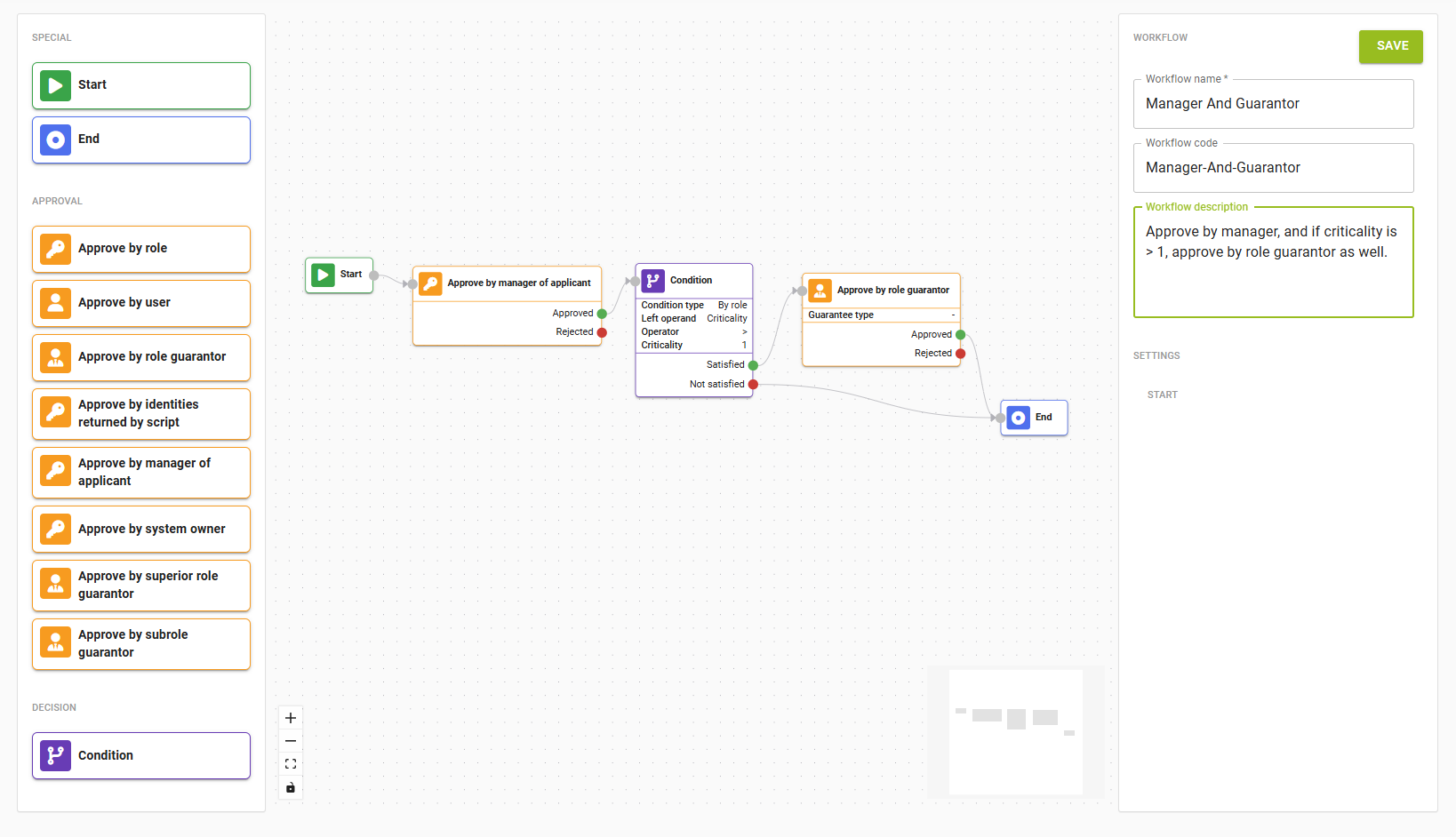
Workflow Node Types
Nodes are the basic "steps" that you can combine to create a workflow. This section describes the available types and their uses.
Control Nodes
Control nodes are not approval steps themselves but govern the evaluation of the approval process:
- Start - The workflow begins here; no approval step is defined.
- End - The workflow ends here with successful approval; no further approvable step is defined.
- Condition - Defines a condition in the approval process that evaluates to TRUE or FALSE, allowing for branching. It contains attributes:
- Condition Type
- Left Operand
- Right Operand
- Operator
- Extended attribute (only used for condition types that can deal with extended attributes - the only one such condition currently implemented is Condition by contract which can have Extended attribute as its left operand - in that case, this field must contain the code of the relevant attribute)
Condition Types in the Process
- Guarantor Type Existence - compares the existence (or non-existence) of a role guarantor of the specified type.
- Role Criticality - compares the criticality value of the role with a numeric value.
- Role catalogues - check if role is in specified catalogues or in any catalogue under selected catalogues.
- Contract - check the value of the identity (requested for) contract's attributes against the condition. Supports extended attributes as well.
- Assigned to Type - compares the type of the target the role is being assigned to. The supported operators are "equals" and "not equals", the compared value is picked from Contract position, Personal account, Personal other account and Technical account. Usable with the role assignment events only.
- All assignment targets fall under the same approvable event, so this is the condition to use when contracts, personal accounts and technical accounts have to be approved differently. See Configuring approval of role assignment for a worked example.
- Technical Asset - checks whether the technical account has a technical asset filled in. The supported operators are "is empty" and "is not empty", so the condition has no right operand. Provided by the technical accounts module (tech).
- For the Technical Account Creation Request event, the technical asset of the account being created is evaluated.
- For the role assignment events (Assign Role Request, Change Assigned Role Request and Remove Assigned Role Request), the technical asset of the technical account the role is assigned to is evaluated.
- In any other case the approval ends with an error and the approval process definition has to be fixed. That happens when the role is assigned to a contract, when it is assigned to an account that is not a technical account, and when the condition is used with any other event. The reason is part of the error message; for role assignment requests it is also recorded in the request log.
Approval Nodes
Approval nodes define a specific approval step with a set of approvers (could be a single approver). If the WF engine does not find anyone in the set of approvers (e.g., because no one has an assigned role), the approval task is automatically created for the administrator (login: admin).
Types of Approval Nodes
- Approval by Identity - The node defines a specific identity that approves in the given step.
- Approval by Role - The node defines a specific role representing the approvers in this step, considering role hierarchy (e.g., if the role is assigned as subordinate). Only valid/active users are considered.
- Approval by Role Guarantor - For role change/removal/addition approval, the set of approvers corresponds to the guarantor of the specified role.
- Includes an attribute to select only a guarantor of a particular type (guarantee-type).
- Approval by Script - The set of approvers is calculated by a Groovy script, which must return a list of identities.
- Approval by Manager/Guarantor - The set of approvers consists of the manager (for standard identities) or the guarantor (for technical accounts).
- Approval by Superior Role Guarantor - For business role change (subrole addition or removal), the set of approvers is the set of guarantors of the superior role.
- Includes an attribute to select only a guarantor of a particular type (guarantee-type).
- Approval by Sub Role Guarantor - For business role change (subrole addition or removal), the set of approvers is the set of guarantors of the subrole.
- Includes an attribute to select only a guarantor of a particular type (guarantee-type).
- Approval by technical asset holder - For technical account creation and role request (assign, change or remove) for a technical account, the set of approvers is the set of the holders (direct or by role) of the technical asset the technical account belongs to.
Approval Process Agenda
An approval process assigns a workflow to a specific event in IdM that requires approval. The system allows the same workflow to be used repeatedly for multiple events; however, some types of approval nodes (e.g., approval by role guarantor) can only be used with specific approval processes (e.g., those concerning role assignments).
Approvable Events
| Event | Description | IdM/Module |
|---|---|---|
| Assign Role Request | The event is triggered when identity has a new role added in a request to change roles. If marked as “do not approve,” the workflow is not triggered. | IdM |
| Change Assigned Role Request | The event is triggered when role assignment parameters are changed in a request to change roles. E.g. date of validity of the role, or other parameters. If marked as “do not approve,” the workflow is not triggered. | IdM |
| Remove Assigned Role Request | The event is triggered when an assigned role is removed during a request to change roles. If marked as “do not approve,” the workflow is not triggered. Not triggered for automatic removal (e.g. departure). | IdM |
| Business role definition change request - role addition | The event is triggered when a role is added to a business role definition. | IdM |
| Business role definition change request - role removal | The event is triggered when a role is removed from a business role definition. | IdM |
| Role Creation Request | The event is triggered when a new role definition is created in IdM. | IdM |
| Delete Role Request | The event is triggered when a role definition is deleted in IdM. | IdM |
| Recertificate Assigned Role Request | The event is triggered when an assigned role is to be recertified. | rec |
| Technical Account Creation Request | The event is triggered when a user tries to create a new technical account. | tech |
Configuring approval of role assignment
The most frequent use-case of approval is to approve role assignment to an identity's contract.
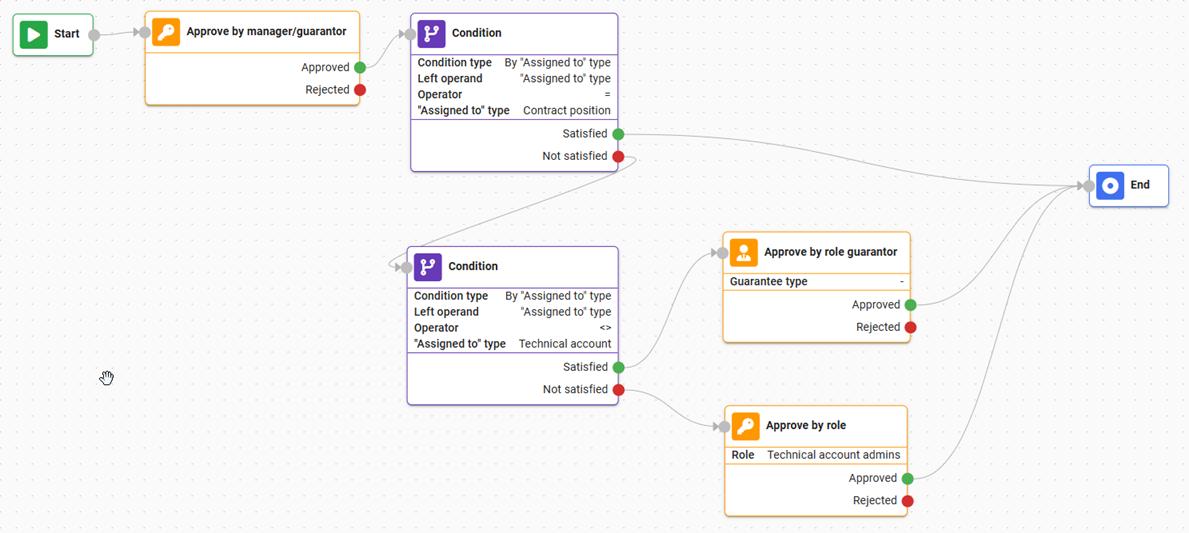
However, in IdStory IdM, roles can also be assigned to specific personal accounts or to technical accounts. All of these types fall under a single approval event (e.g., assignment under "Assign Role Request"). If you need to approve them differently depending on the type, this must be configured within the workflow. The condition 'By "Assigned to" type' is used for this purpose, where you can specify what type the assignment target should or should not be. The following workflow therefore functions as follows:
- First round: approval is always required from the manager of the user to whom the role is to be assigned; for technical accounts, their guarantor is used instead.
- Second round:
- If the assignment is to a contract, no further approval is needed.
- Otherwise, if it is not an assignment to a technical account (and since it is not an assignment to a contract, it must be an assignment to a personal account or an other personal account), the assignment must also be approved by the guarantor of the assigned role.
- Otherwise, if it is an assignment to a technical account, it must also be approved by the technical account administrator (designated by the "Technical account admins" role).
Approval Processes
Each approval process includes:
- Name - A human-readable name identifying the approval process.
- Code - A machine-readable and unique identifier for the approval process.
- Event - The event to which the approval process is applicable. See the Approvable Events section for which events are supported.
- Selected Workflow - Specifies the predefined workflow used for an event that meets the filter condition.
- Order - Approval processes are evaluated based on this order (from lowest to highest), always using the first approval process that matches the event (event and condition).
- Condition - An approval process may contain a condition that restricts the events for which it applies; currently, only a condition on identity type (projection) is supported.
Approval Process Management
Approval processes can be managed by an admin (controlled by IdM permissions) in the approval process agenda where:
- All active approval processes are visible.
- Approval processes can be deleted, created, or edited.
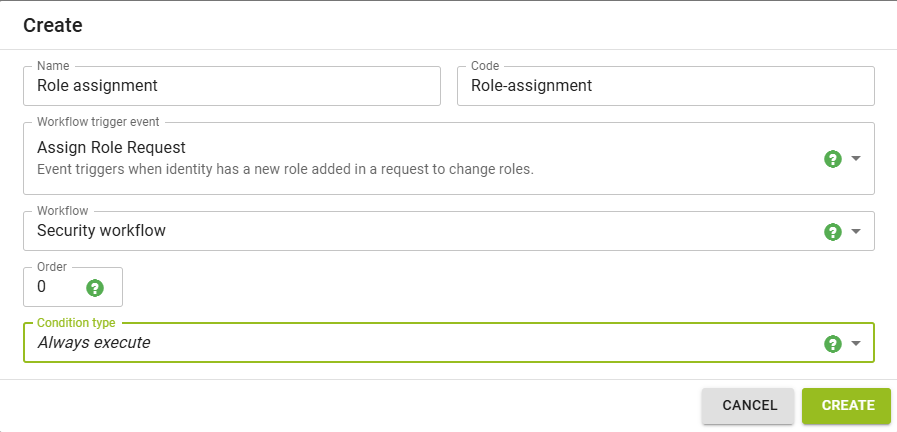
The example below sets up a process to approve role assignment with a workflow called "Security workflow".
Concurrency with Old Workflows
In the current IdM version, approval processes can be configured using both old workflows and the new system. In such cases, users will see two task agendas (Tasks and Tasks WF), each handling tasks from the respective approval processes.
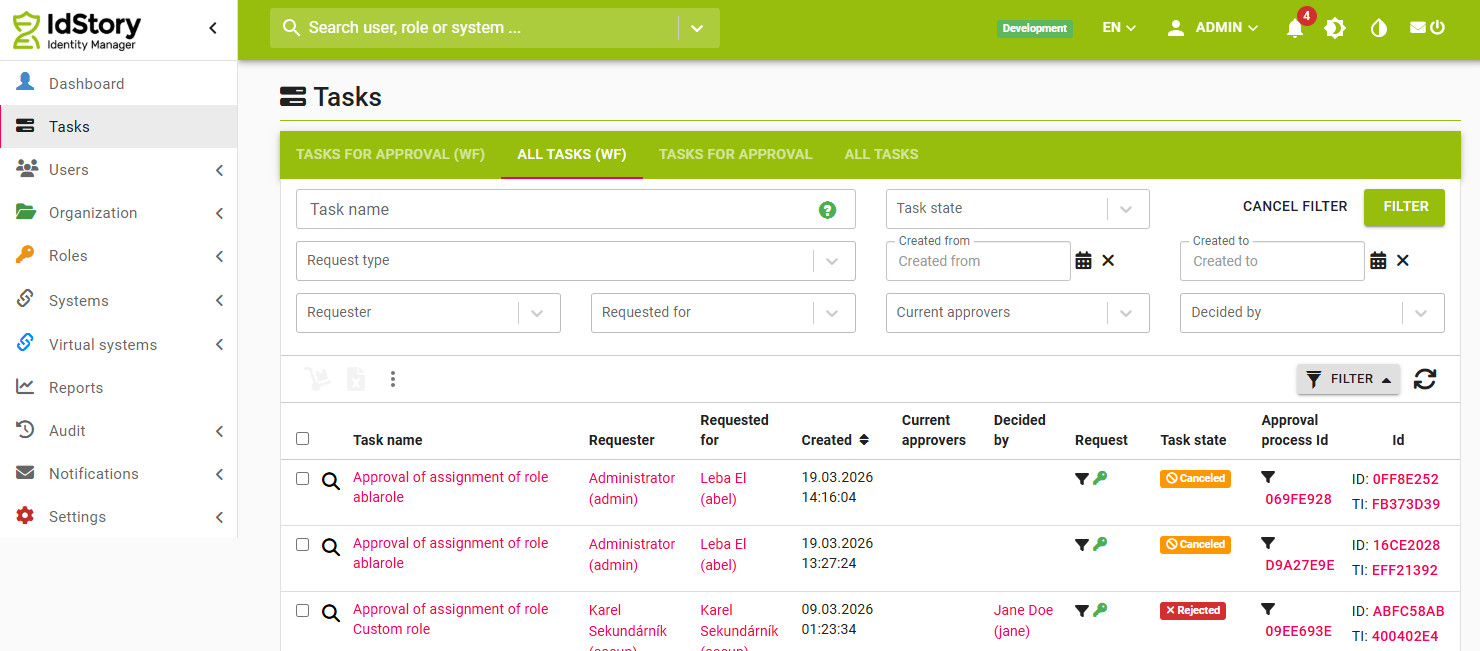
Properties that enable showing both agendas are idm.pub.core.workflows.legacy.enabled and idm.pub.core.workflows.wfengine.enabled (by default true for IdM 15)
Be mindful, that the new workflows have different visualization of the approval process state in the role requests role table. New WF engine uses the field approvalStatus to show the current status and link to approval tasks, old approval processes use candicateUsers - directly listing the assigned approvers. See configuration documentation for more info.
Request - Task Relationship
A role change request can include multiple different changes - removal, addition, modification of individual roles. Each change creates its own instance of an approval workflow = process, according to the applicable approval process rules.
In the approval process, individual users approve or reject tasks. The request is executed = roles are assigned in IdM only after all approval processes are completed (approved or rejected). After the request is executed, provisioning to systems follows, and only approved changes are implemented.
When the request is executed
- All approval processes of the request have to be finished. The request waits for the approval processes themselves, not only for their running tasks. A process moving between two approval steps holds the whole request - its task is decided already, but the task of the next step is created a moment later, in the background. A typical case is a workflow where the first step is autoapproved (the applicant's manager submitted the request) and the critical roles continue to the role guarantor: the request is executed only after the guarantor decides.
- Only a request which still waits for its approval is executed. A request canceled in the meantime (e.g. between the decision of the last task and the move of its process), or a request started again with a new approval (e.g. after an exception), is not executed by an approval process which finishes late.
- Only approved changes are executed. A change whose approval process did not approve it - the process still runs, it failed or it was canceled - is canceled when the request is executed, and the warning "approval process of the concept did not approve it" is written to the log of the request and of the change. A change without any approval process (e.g. no approval process is configured for its operation) is executed as before.
Every role of the request has its own approval process, and the processes are moved forward by the decisions of their tasks, each of them in a transaction of its own. The process which finishes as the last one therefore does not have to see the processes finished by the other transactions. That is why every process finished while the request waits for its approval publishes an approval check - the role request event CHECK_APPROVAL - which is evaluated after its transaction is committed and wakes the request up, when all approval processes are finished.
- The approval check is published only when asynchronous event processing is enabled (idm.sec.core.event.asynchronous.enabled, enabled by default).
- Approval checks appear in the entity event agenda with the role request as their owner. Checks of one request are duplicates of each other, so the queue processes one of them in a batch.
- The check is evaluated by the processor core-role-request-check-approval-processor, which cannot be disabled - a disabled processor would drop the checks and the requests would not be executed until the scheduled task resumes them (see Resuming stuck role requests below).
- Processors of a project registered for role requests without explicit event types receive the CHECK_APPROVAL events as well - check that they ignore them.
Asynchronous submit of role requests
A role request can contain thousands of roles and every one of them gets its own approval process (see Request - Task Relationship above), so starting a large request takes a while. The submit therefore does not wait for it: IdM checks the request, marks it as submitted and starts it (creates its approval processes, or realizes a request without approval) in the background, under the identity which submitted it.
What the applicant sees:
- The submit answers at once. A request which is not valid (e.g. a required role attribute is missing) is refused right away and stays a concept.
- A submitted request is marked with the state shown as e.g. Concept (submitted) until its start is over. In the meantime neither the request nor its roles can be changed, and the request cannot be submitted again or deleted.
- The result of a quick start is shown as before. The request detail waits up to 15 seconds for the start. An error found by the start (e.g. by a check of a module) is shown right away and the detail stays open; otherwise the usual "Request was started and is executing on the background." message is shown and the detail is closed.
- A start which takes longer carries on in the background. The browser keeps watching it for 5 more minutes, and if the start fails, a message with a Show request button appears (it stays until it is closed). The watching lives only in the open browser tab.
- The approval of a large request is started much faster than before. On a request with 1000 roles all approval tasks were created within five minutes, where it used to take tens of minutes.
Workflow execution
When an event happens, that has approval process defined for it, the IdM proceeds as follows:
- IdM takes a snapshot of the workflow definition, that will be used for all approval steps for this event. This prevents workflow changing mid-approval having hard to predict consequences.
- IdM evaluates the first step in the workflow and calculates a list of identities for approvers of the first step.
- If the list of approvers is empty, IdM assigns superAdmin identity as the approver
- If the applicant is one of the approvers, IdM marks the step as "autoapproved" with corresponding comment.
- IdM waits for the task to be approved/rejected by user input
- IdM moves to next step based on the result - if there is no step to continue into, the approval process ends with REJECTED. If IdM reached the end, approval process ends with APPROVED. The move is done in the background by an entity event processed after the decision, so the task of the next step is created a moment after the decision.
- When the approval processes of all changes in a role request are finished, the request is executed - see When the request is executed.
Resuming stuck role requests
The approval of a role request moves forward by entity events processed in the background - the decision of an approval task is followed by the event moving its process to the next step, and the finished processes are followed by the approval check, which wakes the request up. If such an event is lost on the way (e.g. it was canceled by a restart of the server, or it failed), the request would stay in progress for good. The scheduled task Resume approval of role requests (core-resume-role-request-approval-long-running-task) repairs these requests. It checks the role requests in progress, whose approval is suspended, and:
- Approval is over - none of the approval processes of the request can ask for a decision any more, but the request was not executed. The task publishes the approval check, which executes the request; changes not approved by their process are canceled.
- A process waits on the step of a decided (or canceled) task - no event moving the process forward waits in the queue and the task was decided at least the configured number of minutes ago. The process is moved forward the same way the lost event would move it: the task of the next step is created, or the process finishes and the request is executed, when the process was the last one. The process of a canceled task is canceled and the request is executed by the next run of the task.
Parameters of the long running task:
- Decided before (minutes) (olderThanMinutes, 60 by default) - the process of a decided task is moved forward only when the task was decided (last changed) at least the given number of minutes ago; until then its own event can still move it forward. 0 moves the processes of all decided tasks, whose event is not waiting in the queue. The parameter does not apply to requests whose approval is over - these are resumed right away.
The task detail lists only the requests something happened with, every one of them with one of the results:
- Approval of the request is over - the approval check was published, the request is executed when the check is processed.
- Approval of the request moved forward - the approval processes of the request were moved forward by their decided tasks (the tasks are listed).
Requests which wait for decisions properly are not processed, counted or listed. The dry run lists exactly the requests a real run would resume and changes nothing.
What the task does not repair:
- A request whose approval was woken up already, while its continuation (queuing its execution) was lost - typically because a processor continuing the woken up event threw an exception. The event is not suspended any more, so the request is not recognized as waiting for the approval. It can happen to a request moved forward by this task as well.
- An approval process waiting on a step, whose task was deleted - there is no decision to move it forward.
- Requests which are not in progress.
Requests resumed by the task are executed under the system identity, so the audit shows [SYSTEM] instead of the approver.
Changing role assignment validity during approval
When approving a role assignment, the approver is not limited to approving or rejecting it as requested - they can also adjust the validity of the assignment. A typical use case is granting a role only temporarily, or postponing its start, without having to reject the request and ask the applicant to submit it again. This matters in the new engine in particular, because it has no "return to applicant" decision - without this, the only way to correct a date would be to reject the whole request.
The approval task detail therefore contains a Change role assignment validity panel with the Valid from and Valid till fields and its own Save button.

Who sees what:
- Only the approver of the currently running task may change the validity. Everyone else who can open the task sees the same panel read only.
- The permission is bound to the particular role being approved, not to the whole request - an approver of one role in a request cannot change the validity of another role in the same request.
- The panel is not displayed at all for role removal requests, where validity is not used.
The change is applied to the role assignment when the request is executed. It is not approved again, so approvers of the following rounds see the already adjusted dates. This is safe with respect to the approval process itself - the set of approvers never depends on validity, so extending it cannot bypass an approval round.
Every saved change is recorded as an informative note on the approval task (displayed in blue, unlike approval and rejection notes), stating which date changed and from what value to what value. Each save creates its own note, so the full history of adjustments stays visible to the following approvers. Changes are of course also recorded in the audit of the role request concept.
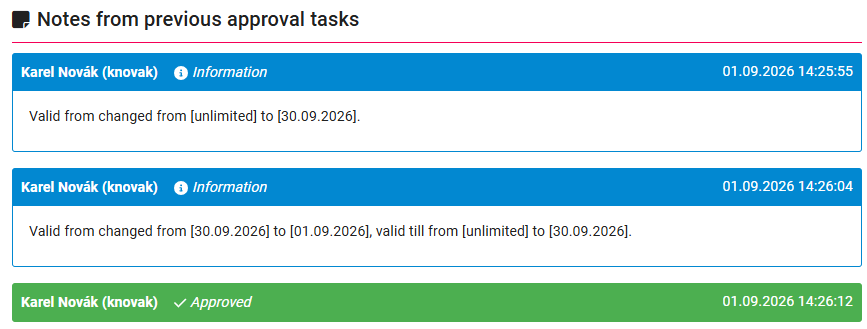
The feature is controlled by the property idm.pub.core.approval-tasks.concept-validity.editable, which is enabled by default. Setting it to false hides the panel completely.
Aggregate notifications
It is possible to aggregate notifications for new approval tasks, so that instead of getting one notification per new approval task, the users now get a regular notification (with configurable frequency) that lists all approval tasks on their person. The notification only comes if they recerived new approval tasks since the last notification.
To configure the notification, you need to:
- Disable the individual notification by disabling the topic core:wfAssignedTaskNotificationMessage
- Plan the scheduled task NewApprovalTaskBulkNotificationTaskExecutor
- Ensure that you have the topic core:wfAssignedTaskBulkNotificationMessage active and that you have a template for it
- The default template looks like so:
<body>
Dobrý den,<br />
<br />
#if($tasks.size() == 1)
byl Vám přiřazen nový schvalovací úkol:
#else
byly Vám přiřazeny nové schvalovací úkoly:
#end
<br />
<table style="border-collapse: collapse; border: 1px solid #dddddd; margin: 15px 0;">
<tr><th style="font-weight: bold; border: 1px solid #dddddd; padding: 5px 10px;">Schvalovací úkol</th></tr>
#foreach( $task in $tasks )
<tr><td style="border: 1px solid #dddddd; padding: 5px 10px;"><a href='$task.getUrl()'>$esc.xml($task.getTaskNameCs())</a></td></tr>
#end
#if($restCount> 0)
#if($restCount <5)
<tr><td>a $restCount další</td></tr>
#else
<tr><td style="border: 1px solid #dddddd; padding: 5px 10px;">a $restCount dalších</td></tr>
#end
#end
</table>
Celkově máte $totalCount
#if($totalCount == 1)
úkol
#elseif($totalCount <5)
úkoly
#else
úkolů
#end
ke schválení, dokončete
#if($tasks.size() == 1)
ho,
#else
je,
#end
prosím, v systému CzechIdM. Zobrazit
#if($tasks.size() == 1)
ho
#else
je
#end
můžete <b><a href='$url'>zde</a></b>.
<br />
<br />
S pozdravem BCV Solutions s.r.o.
<br />
<br />
-------------------------------------------------------------------------------------<br />
Hello,<br />
<br />
You have been assigned new
#if($tasks.size() == 1)
task
#else
tasks
#end
for approval:
<br />
<table style="border-collapse: collapse; border: 1px solid #dddddd; margin: 15px 0;">
<tr><th style="font-weight: bold; border: 1px solid #dddddd; padding: 5px 10px;">Task for approval</th></tr>
#foreach( $task in $tasks )
<tr><td style="border: 1px solid #dddddd; padding: 5px 10px;"><a href='$task.getUrl()'>$esc.xml($task.getTaskNameEn())</a></td></tr>
#end
#if($restCount> 0)
<tr><td style="border: 1px solid #dddddd; padding: 5px 10px;">and $restCount more</td></tr>
#end
</table>
You have a total of $totalCount
#if($totalCount == 1)
task
#else
tasks
#end
for approval. Please complete
#if($totalCount == 1)
it
#else
them
#end
in the CzechIdM system. You can access
#if($totalCount == 1)
it
#else
them
#end
<b><a href='$url'>here</a></b>.
<br />
<br />
Regards BCV Solutions Ltd.
<br />
<br />
</body>
</html>
Delegation
The new WF engine supports delegations. See delegation documentation for more information about delegation and its configuration.
Permissions
RoleRequestByNewWfInvolvedIdentityEvaluator
Use this evaluator if you want to grant the user permission to all role requests for which they have been the approver of at least one approval task created by the given role request. The main use case for this evaluator is to allow the approver to go from the detail of their approval task to the detail of its associated role request. The assignment of READ permission for role requests via this evaluator is configured within the user role initialization, so the main use case is covered automatically. Please note that the RoleRequestByWfInvolvedIdentityEvaluator (without the "new") does not work properly for the new workflow engine.
Approval Tasks
If user cannot see approval tasks, this should fix it: IdmApprovalTask Read
Approval task reminder notification
It is possible to create a regularly scheduled long running task to remind people about their assigned and still running approval tasks.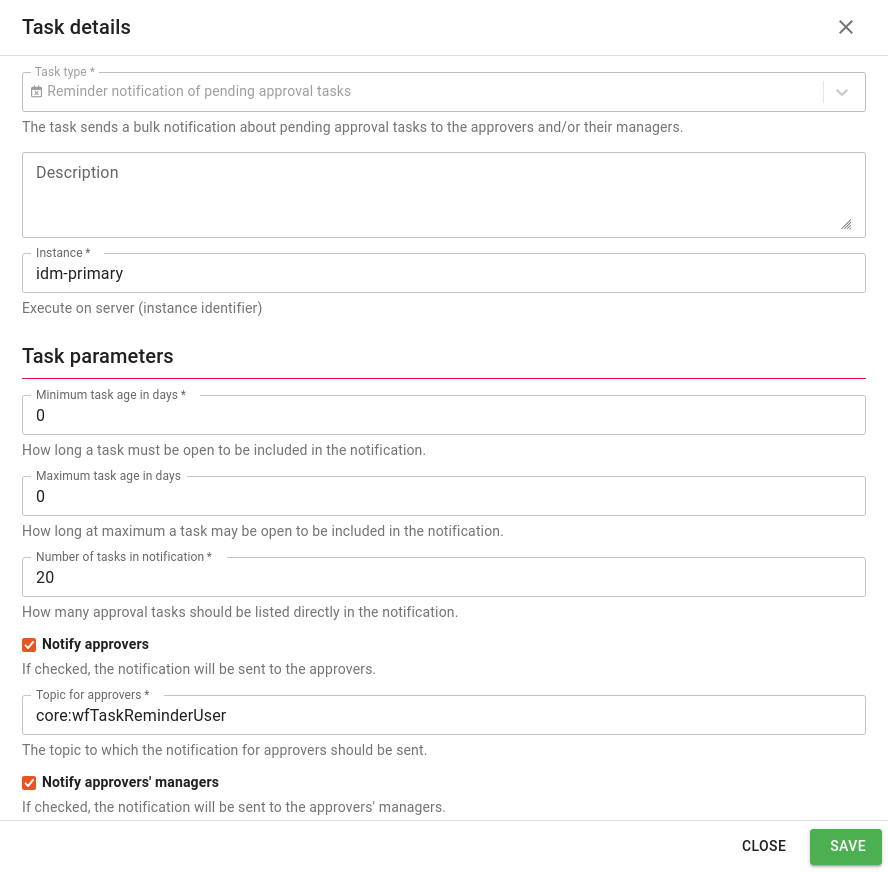
The long running task can send the notifications either to the approvers themselves or to their managers - the topics for those two notifications can be set independently.
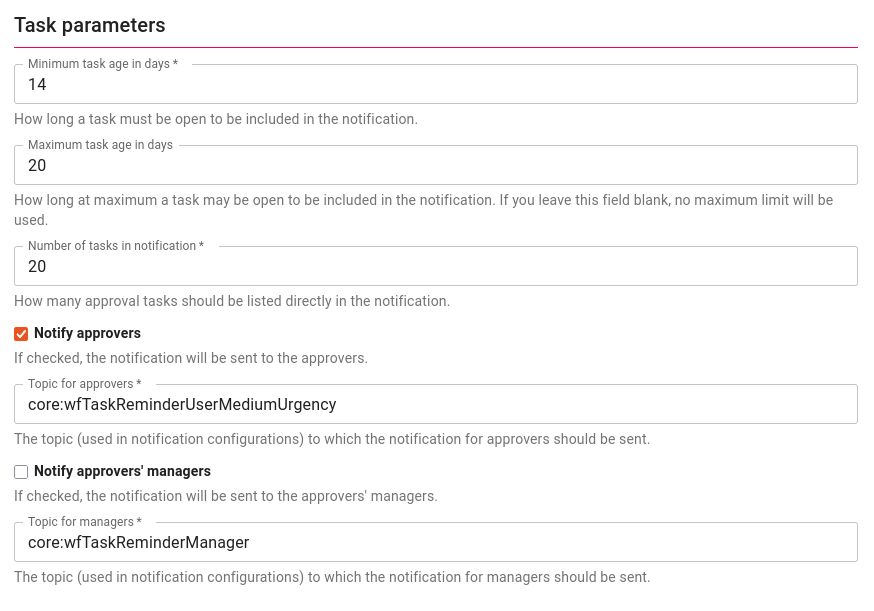
The long running task sends one (or two - if configured to send it both to approvers and their managers) notifications for every user that has at least one running approval task with age between the minimum number of days and maximum number of days (both boundaries are inclusive). Inside this notification, at most [tasksToSend] of those tasks are listed.
Parameters of the long running task:
- minimum days open: how long at least an approval task has to be open to be included in the notification.
- maximum days open: how long at most can an approval task be open to be included in the notification.
- tasks to send: how many tasks are listed in the notification itself (the rest are only mentioned as "and X more")
- notify approvers: whether or not the notification should be sent to the approvers
- notify managers: whether or not the notification should be sent to the managers of the approvers
- topic for approvers: topic for the approver notification, the task will expect a notification configuration with this topic and level INFO
- topic for managers: topic for the manager notification, the task will expect a notification configuration with this topic and level INFO
Parameters passed to the notification template:
- tasks: list of running tasks with age within minimum days and maximum days - contains at most [tasksToSend] items
- url - url to the list of the user's tasks - in approver notification only
- taskCount - count of all running tasks within the specified timespan
- restCount - count of running tasks within the specified timespan not included in 'tasks' (taskCount - numberOfTasksInNotification)
- totalCount - count of all running tasks (regardless of age) assigned to the user
- approver - the approver assigned to the tasks in this notification
- min days - how long at least an approval task has to be open to be included in the notification
- max days - how long at most can an approval task be open to be included in the notification
Use case for escalating notifications:
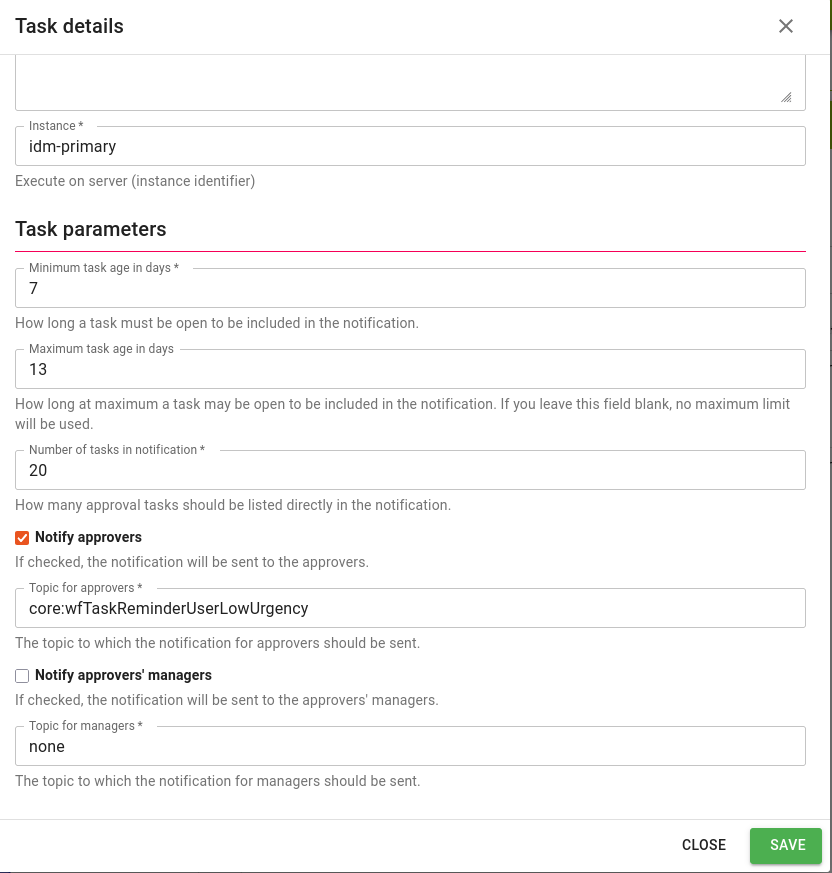
If you want to configure a way to notify the approvers with increasing level of urgency, it is possible to set up multiple non-overlapping reminder tasks such as:
- First long running reminder task with minimum days open 7, maximum days open 13 and a custom topic for low urgency reminder that only notifies the approver.
- Second long running task with minimum days open 14, maximum days open 20 and a custom topic for medium urgency reminder that only notifies the approver but the notification mentions that next week the manager will be notified.
- Third long running task with minimum days open 21, no maximum days open and two custom topics for high urgency reminders - one for the approver and one for their manager.
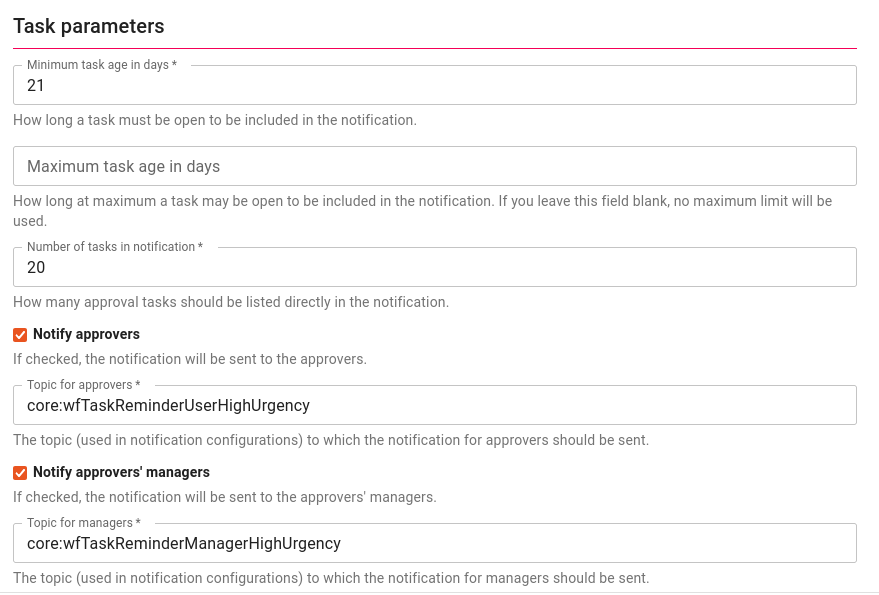
Note that for this to work there have to be notifications configurations for all of the topics with the NotificationLevel INFO. There doesn't have to be any notification configuration for the 'none' topic - any value in the topic field for which the checkbox is left unchecked will be ignored as no notification is sent with that topic.
Approval task report
To generate a spreadsheet report of the current state of the approval tasks, the reports module provides the ApprovalTaskReport. Details about its use are on a separate page