

Systems - DB: TreeNodes (org. structure) synchronization
What do you need before you start
- You need install CzechIdM 7.7.0 (and higher).
- You need be logged in as admin.
- You need enable ACC module.
- You must have database jdbcTest with table organizations:
WITH OWNER = idmadmin
ENCODING = 'UTF8'
TABLESPACE = pg_default
LC_COLLATE = 'cs_CZ.UTF-8'
LC_CTYPE = 'cs_CZ.UTF-8'
CONNECTION LIMIT = -1;
(
id character varying(255),
code character varying(255),
name character varying(255),
parent character varying(255)
)
WITH (
OIDS=FALSE
);
ALTER TABLE public.organizations
OWNER TO idmadmin;
- And add two records:
id, code, name, parent)
VALUES ('11', 'rt', 'root', null);
INSERT INTO public.organizations(
id, code, name, parent)
VALUES ('22', 'org1', 'organization1', '11');
Create and edit DB system
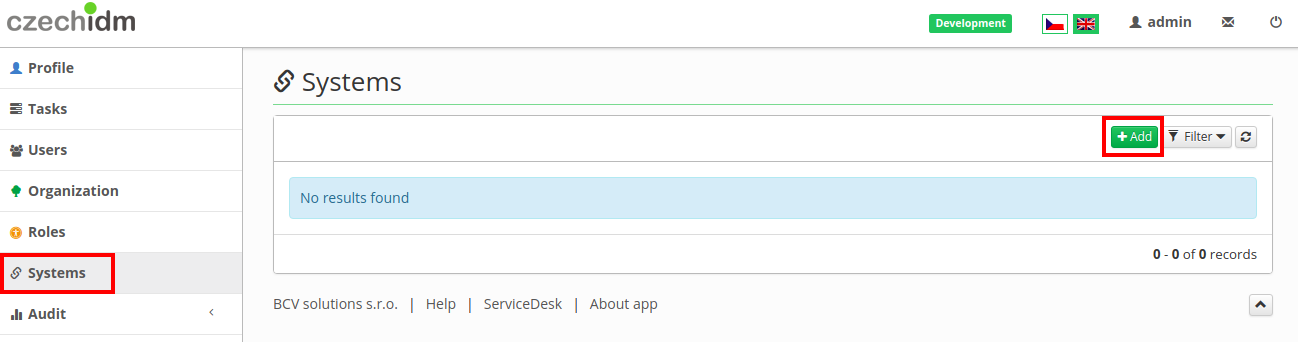
We have completely empty organization's agenda. 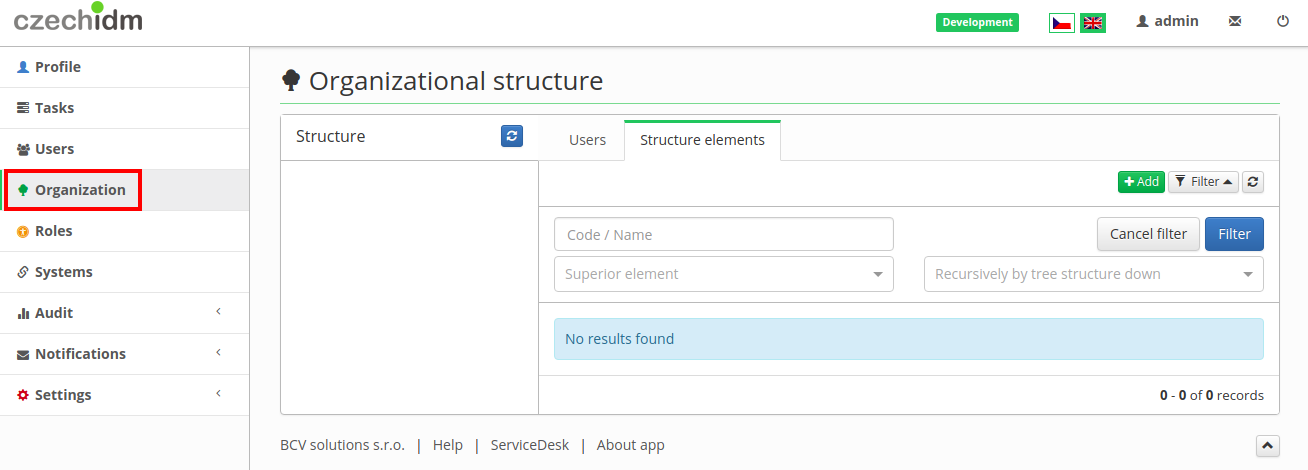 Now we go into Systems agenda and add new system. Click on green button Add.
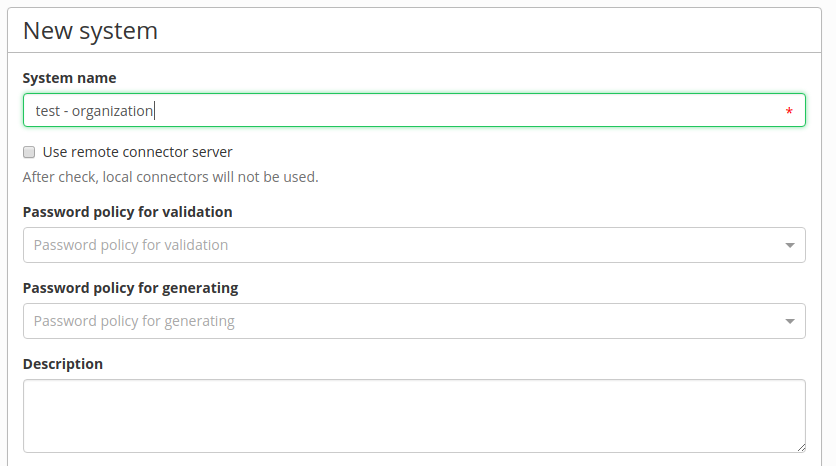
  Fill System name and at bottom of page there is green button Save and continue, so click on it.
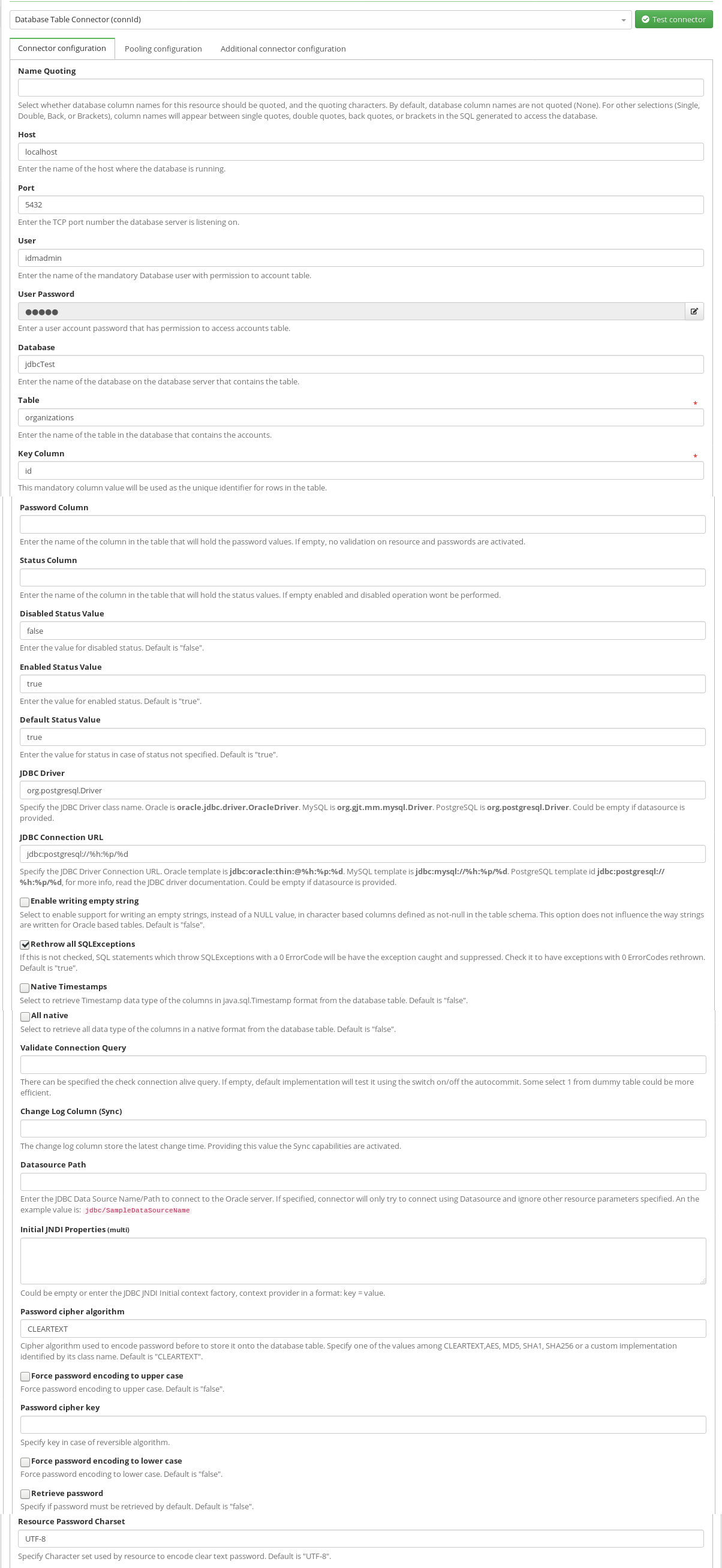
  Go to Configuration tab and fill in information about your database. Ours are as such:
| Parameter | Value |
|---|---|
| Host | localhost |
| Port | 5432 |
| User | idmadmin |
| User Password | \*\*\*\*\*\*\* |
| Database | jdbcTest |
| Table | organizations |
| Key Column | id |
| JDBC Driver | org.postgresql.Driver |
| JDBC Connection URL | ``jdbc:postgresql:%h:%p/%d`` |
 Then go to tab Scheme and generate scheme.
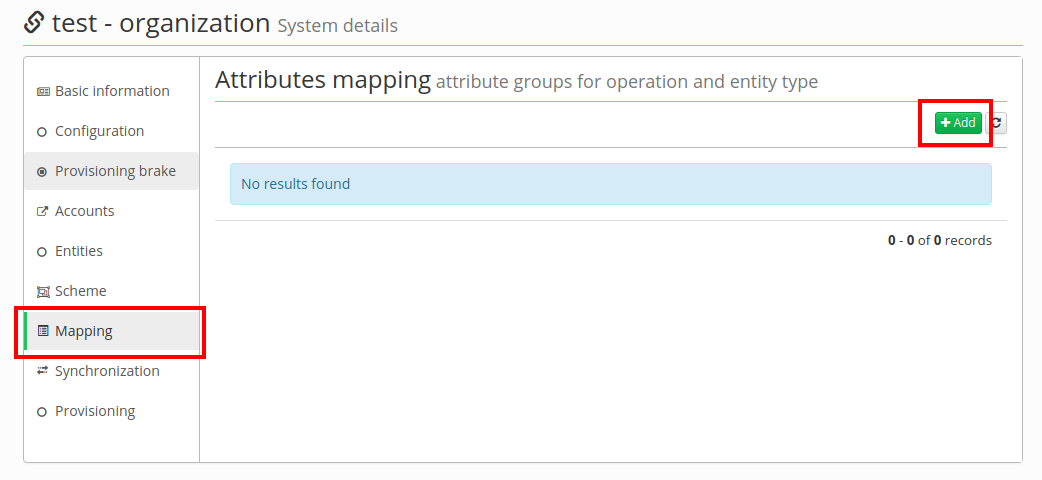
 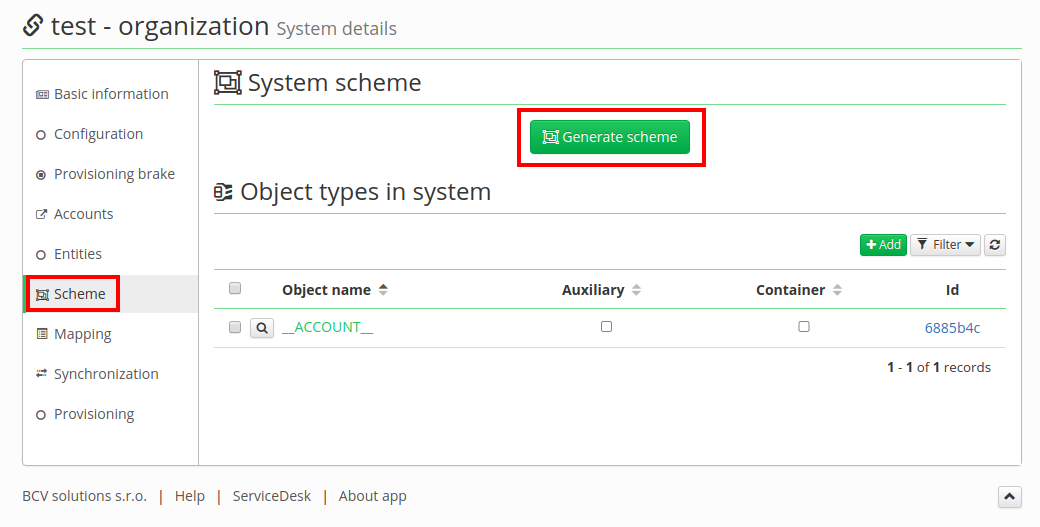 Then go to Mapping and click on Add button.
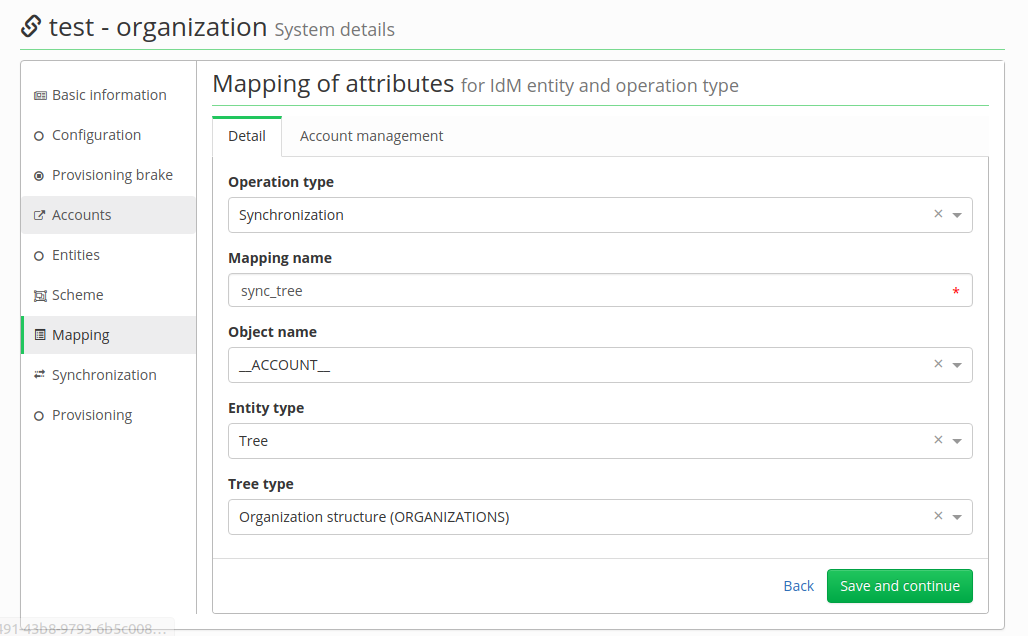
  Now fill in information from picture bellow and click on Save and continue.
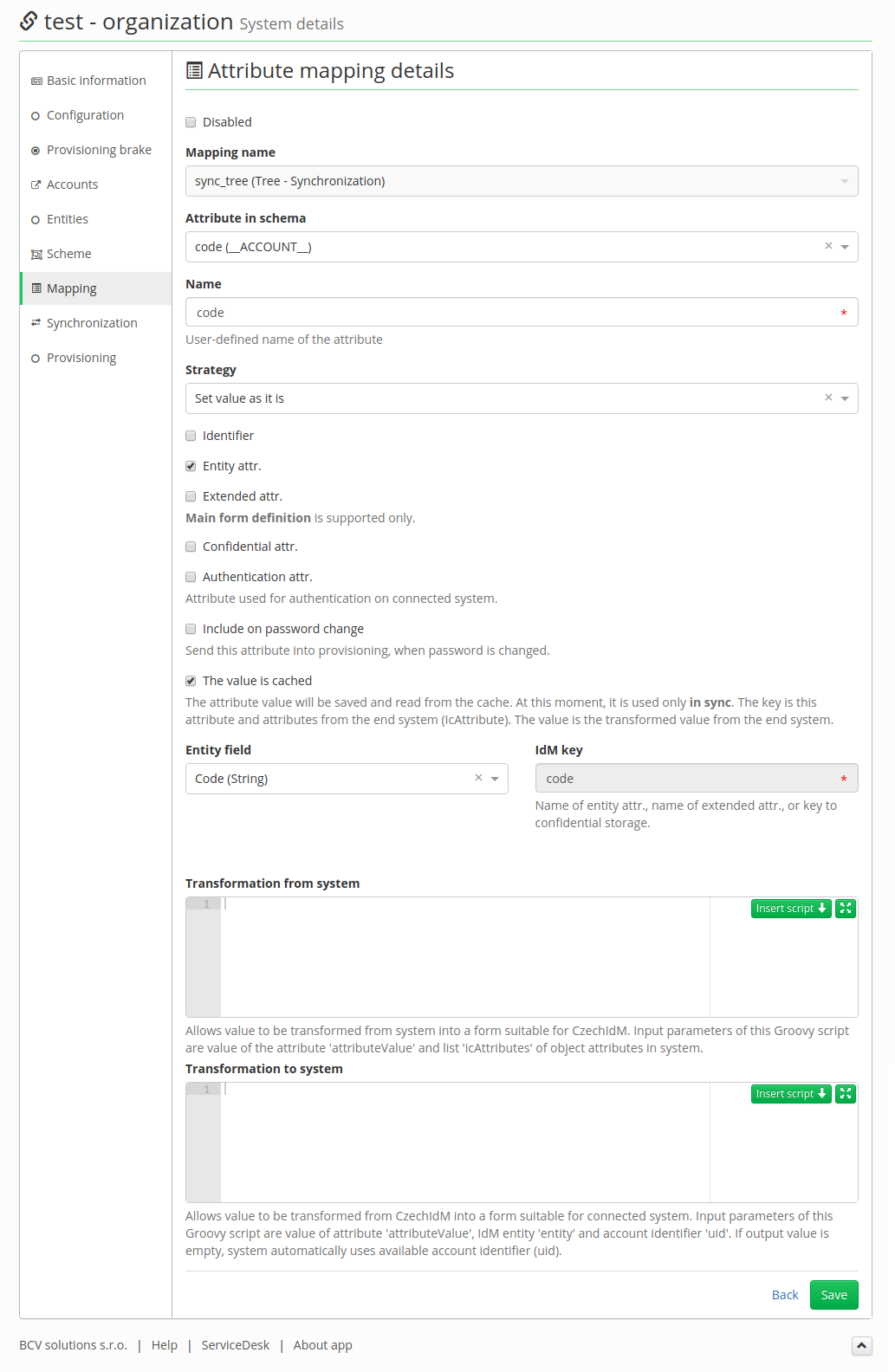
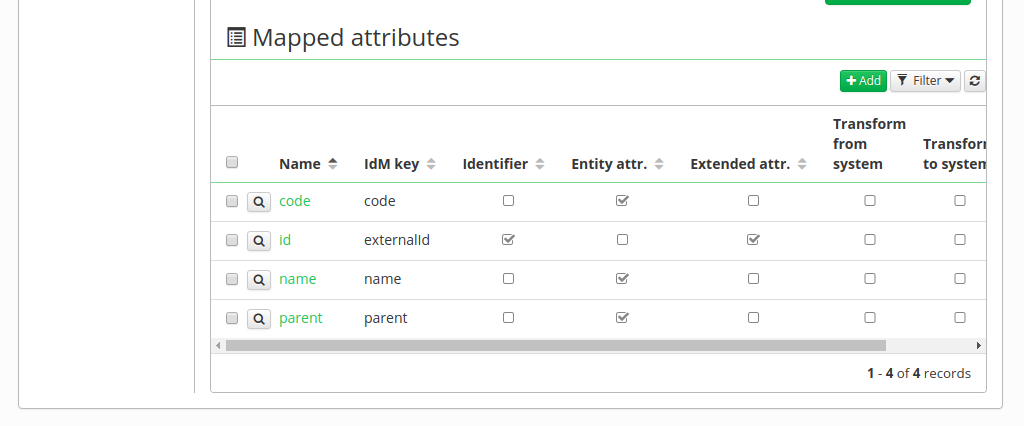
  At the bottom of page, there are mapped attributes. We are going to add 4 attributes:
| code | code | false | true | false | Code (String) | |
| name | name | false | true | false | Name (String) | |
| parent | parent | false | true | false | Parent (String) | |
| id | id | true | false | true | | externalId |
Fill "code, name, parent" as in the picture:
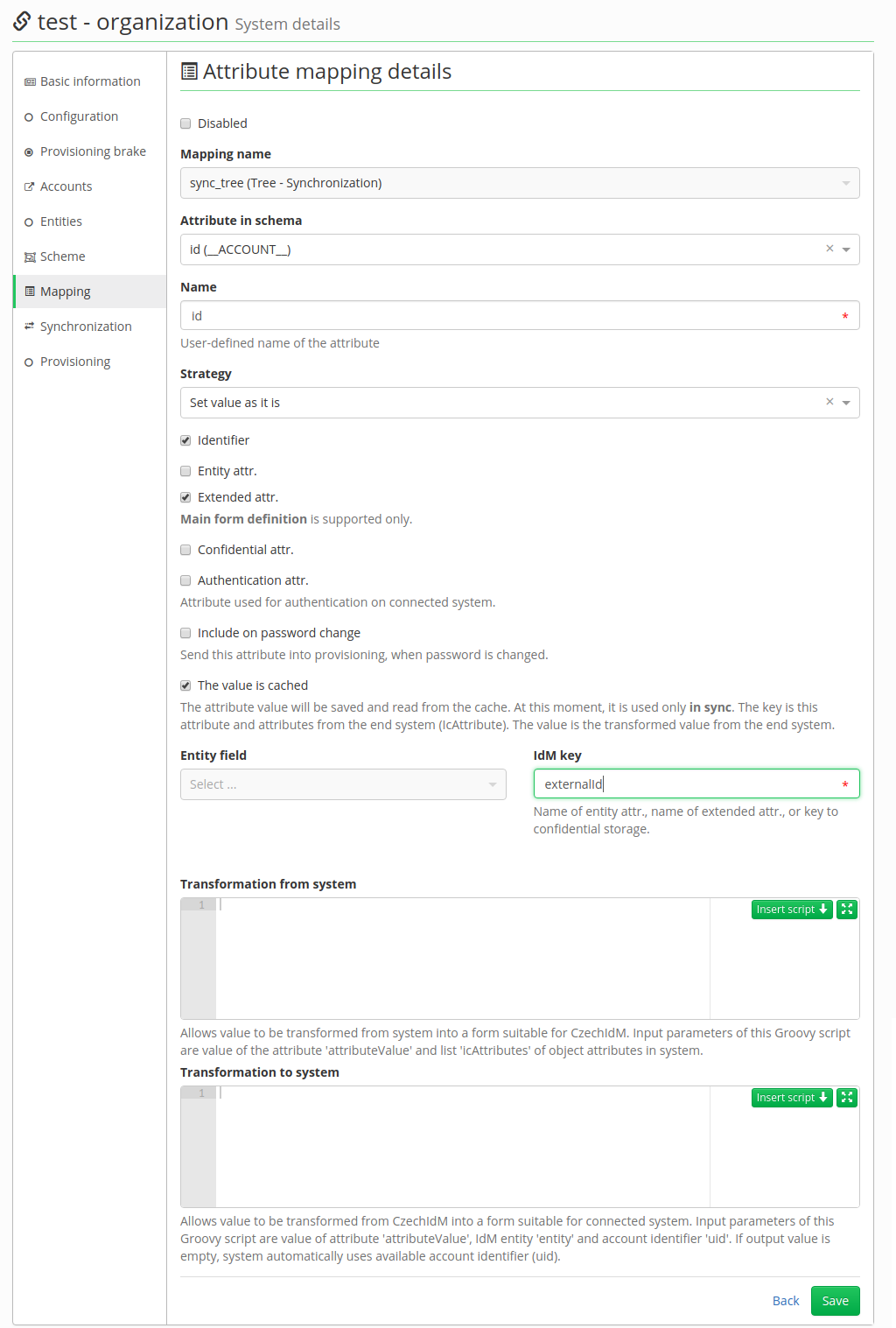
 But "id" fill like this picture:
  Now we have 4 mapped attributes:
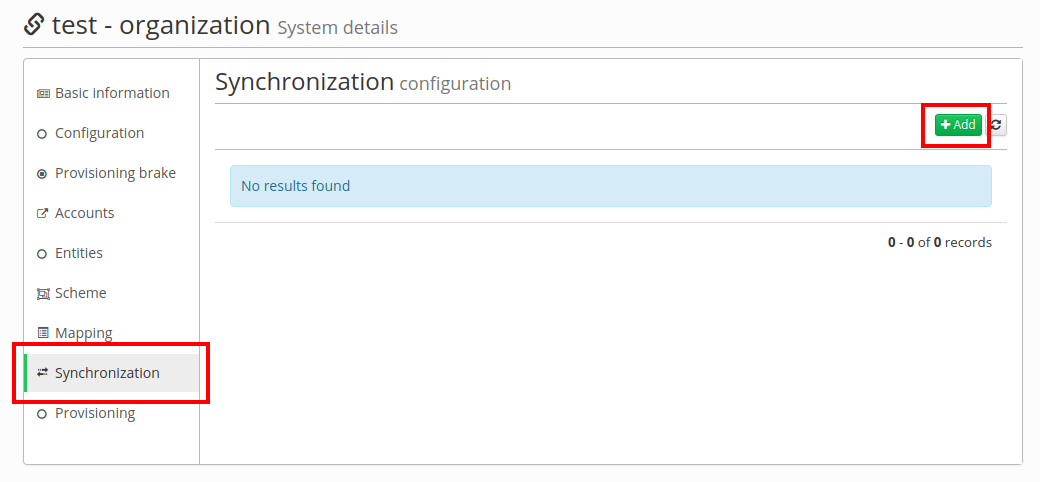
  Go to tab Synchronization and Add new synchronization.
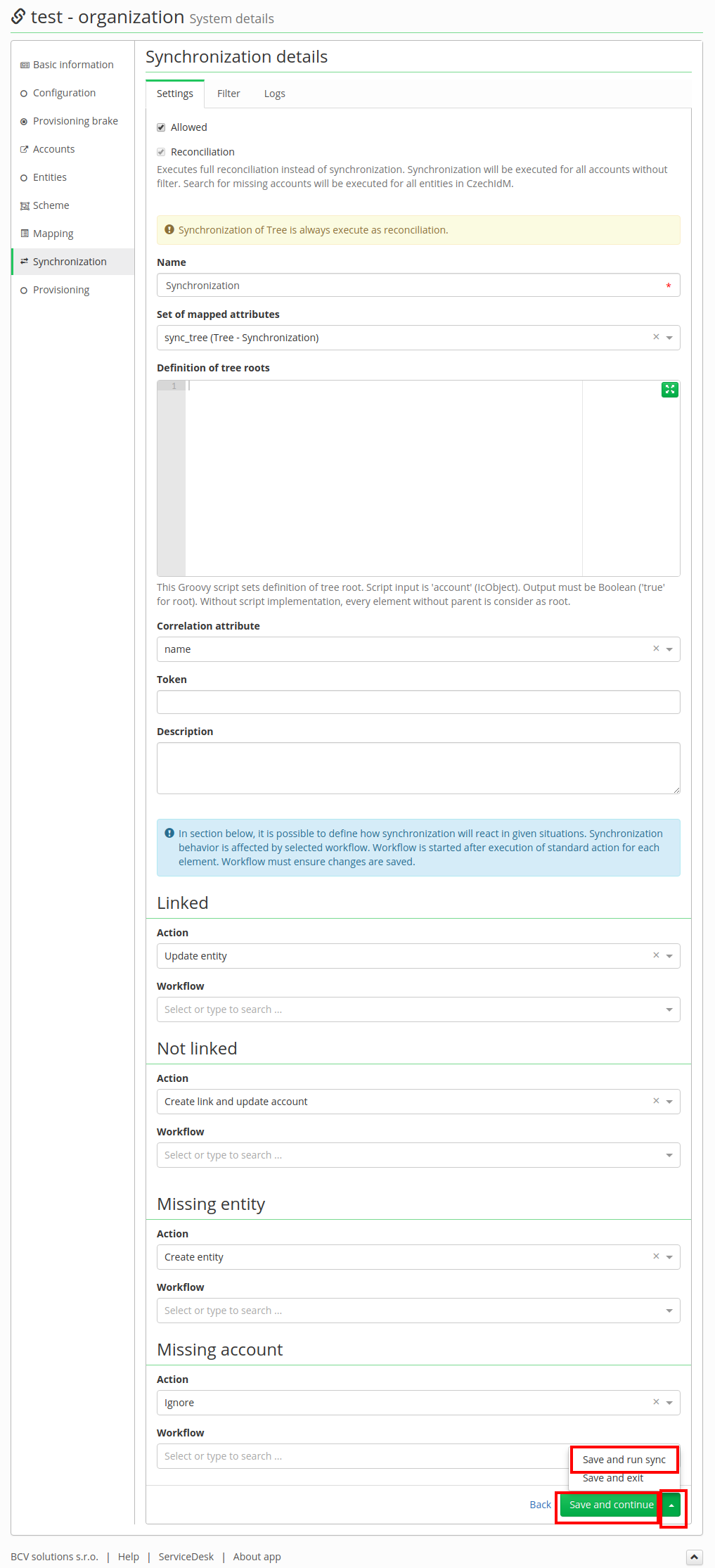
  Fill the form as in the picture below and click on Save and continue, then click on green arrow and option Save and run sync will show up, so click on it:
  Confirm start synchronization:
 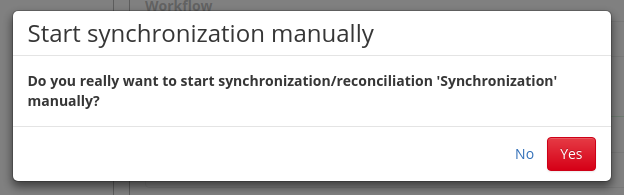 Wait a few seconds, so synchronization can finish its job. And then go to Organization section (in the left menu). And there is now organization tree from the database.
 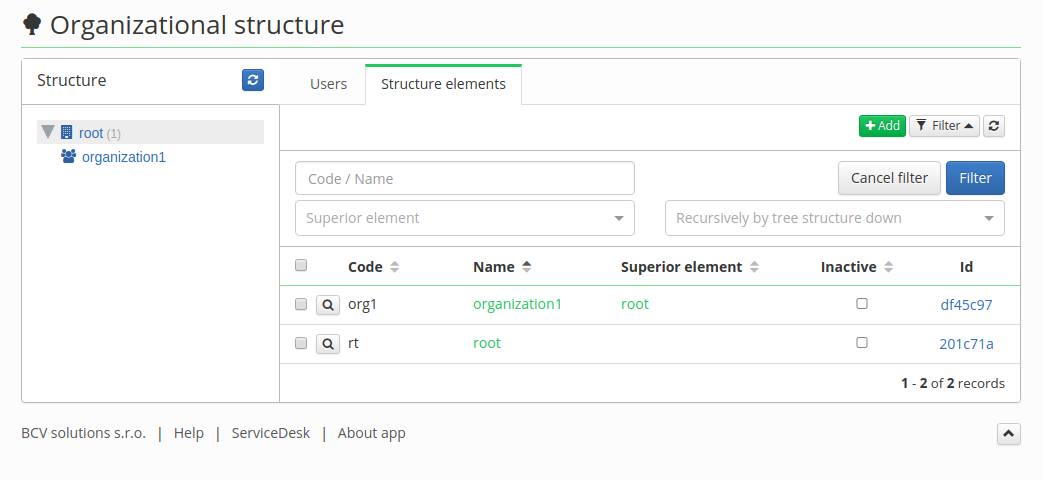 If you have it in a state like in the upper picture you successfully complete this tutorial.
Troubleshooting
The number of organizations is too low (when using parents)
The synchronization processes only organizations, that have consistent values in the attribute parent. It means, that if the value in the attribute doesn't correspond to any identifier of any other organizations, such organization won't be processed at all by the synchronization. The only exception is the NULL value, which means that the organization is the root organization.
Note that the values in the parent attribute must be the identifiers of the accounts. (That may be different from the codes of organizations in IdM.)