

How a Role Guarantor Obtains Access to View Technical Accounts with Their Guaranteed Role
Last modified by Martin Kolombo on 2025/07/17 14:49
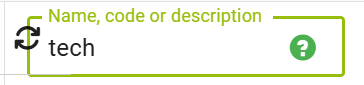
1. In the left menu, click on the Roles tab.

A list of roles will appear.
2. In the list of roles, find your role and click to open its detail.
The window for the selected role will open.
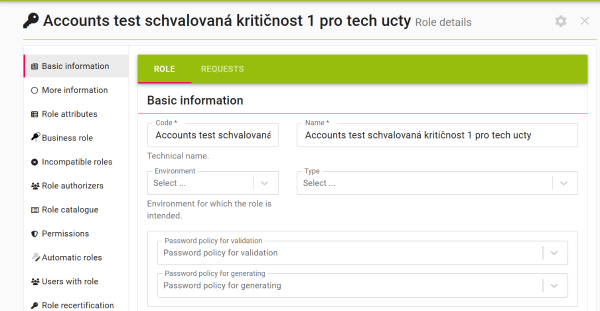
3. In the left menu within the Role Detail window, click on the Permissions tab.

The Assigned Permissions window will appear.
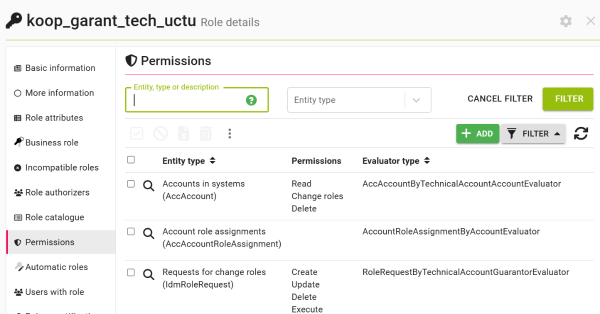
4. On the right in the toolbar, click the Add button.
The New Permission wizard will appear.
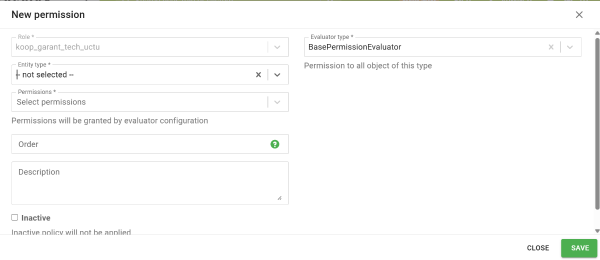
5. In the New Permission wizard, fill in the following fields:
- Agenda / Entity Type: (TechnicalAccount)
- Permissions: Read
- Evaluator Type: TehnicalAccountByGuaranteedRoleEvaluator.
6. Click the Save button.
Stepresult:The given role now allows its guarantor to view the technical accounts that have this role assigned.